Tutorials|BigQuery Connector
💁♀️ Advantage
-
Effective analysis of cross-channel marketing performance
-
Achieving personalized cross-channel communication
-
Creating multi-dimensional, precise audience groups
-
Integrating a 360º consistent customer profile
1. What is BigQuery Data Exporter?
Let's start with a simple understanding of what BigQuery is. BigQuery is a cloud-based data analysis service introduced by Google Cloud. It can handle data analysis operations at a scale of petabytes (PB). Some of the services you use in your daily life, like Google Search and Google Ads, rely on BigQuery as a core technology for data processing and analysis. BigQuery also comes with built-in machine learning capabilities, allowing users to perform more in-depth data analysis according to their needs.
4 main advantage of BigQuery
-
Fast: BigQuery is incredibly speedy. It can retrieve or analyze data at the scale of terabytes or petabytes in just seconds.
-
Versatile: It supports a variety of Business Intelligence (BI) tools and allows integration with third-party applications to enhance data analysis.
In addition to the above two major advantages, BigQuery uses SQL-like syntax to make it easier for users to query data. Data access is also encrypted to strengthen the security mechanism. As for the DR (Disaster Recovery) capability that everyone is most concerned about, BigQuery provides a wide range of data. Copy function to avoid the risk of data loss.
▶️ Setting steps (taking Emarsys as an example)
If any data-related platform receives BQ data, it can be connected to the Crescendo Labs BQ Connector. Here are six common platform connection instructions for reference:
BI system: Power BI, Tableau, Metabase
CDP: Emarsys, Treasure data, Insider
2. Select "Relational Data" from the Add-ons menu

3. In "Relational Data," choose "Connections"

4. Click Create Connection

5. Choose BigQuery
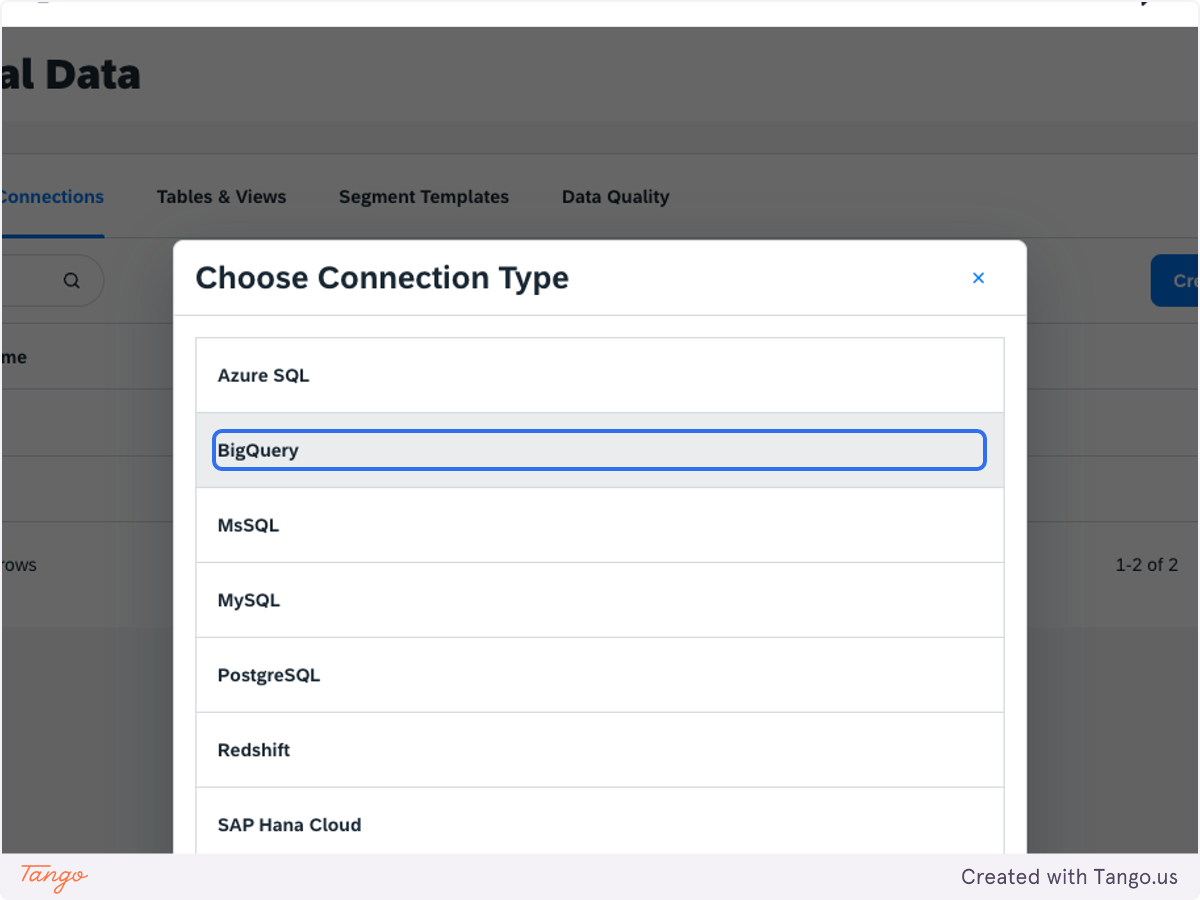
6. Enter the four data values provided by Crescendo Lab

7. After entering the data, click on "Save"

-
Requires proficiency in SQL programming language
-
Data synchronization direction is one-way from MAAC → BQ
-
Transaction tracking data is limited to Web GA data from domains already integrated with the MAAC platform
-
Daily usage limit per client: 500 GB
ℹ️ BigQuery Connector Daily Usage Limit: 500 GB
Definition of the 500GB limit
When running a query, if BQ estimates that the required data volume exceeds 500GB, the system will block the query and prompt you to adjust the query conditions (e.g., narrowing the range or reducing the data size).
If the estimated data volume is below 500GB, the query will run successfully. Even if the actual fetched data exceeds 500GB, the query will still return results successfully.
Reset time
The daily usage limit resets at midnight Pacific Time (UTC-7). Please pay attention to time zone differences when planning queries to avoid exceeding the daily limit.
▶️ Explanations of the relevant data types provided by BigQuery
Currently, using BigQuery, you can access contact attributes, labels, open rates, click data, and consumption behavior data collected from Crescendo Lab's MAAC product database.
- Attribute profile data: Updated daily at 00:00 AM
- Event-type data: Real-time updates (with a potential 1-2 minute delay in case of system overload)
ℹ️ Data record starting point
-
Profile attribute data: accumulated since the brand’s MAAC backend activation
-
Event data: available starting from the activation of BigQuery Connector / CDH webhook for the brand
8. Attribute profile data - Contacts
-
Clients can filter out contacts by the date of contact added to MAAC, the date will align with the contacts created time on MAAC UI

9. Attribute profile data - Tags

10. Event-type data - Transactions

11. Event-type data - Message send

12. Event-type data - Message open

13. Event-type data - Message click

- Each message open and message click are independent BQ events.
- If you need to retrieve data on message opens and click interactions when pushing messages using the Open API, please make sure to create an event ID.
- In MAAC, different functionalities generate click interaction data. If you use the same UTM, it will result in two separate data entries (with different campaign names).
14. Event-type data - Prize send

15. Event-type data - Prize send

16. Event-type data - Prize redeem

17. Event-type data - Contact Profile Customer ID update

18. Event-type data - Contact tag add

19. Event-type data - Contact tag remove
